
Scenarios
A scenario is a self-contained, simulated day of operation: an area of the map, a fleet of resources on shift, a book of work, and a script of timed injections (new incidents, resource problems, surges) that fire as the clock runs. Scenarios run against the real optimiser — everything you see (allocation, re-planning, outsourcing) is live Spiral behaviour, just at accelerated time — which makes them the standard way to demonstrate Helix, train operators, and rehearse operational situations without touching production data.
(For the dispatch screen itself see the Introduction; the Metrics panel is scenario-aware and opens automatically when one starts.)
Starting a scenario
Section titled “Starting a scenario”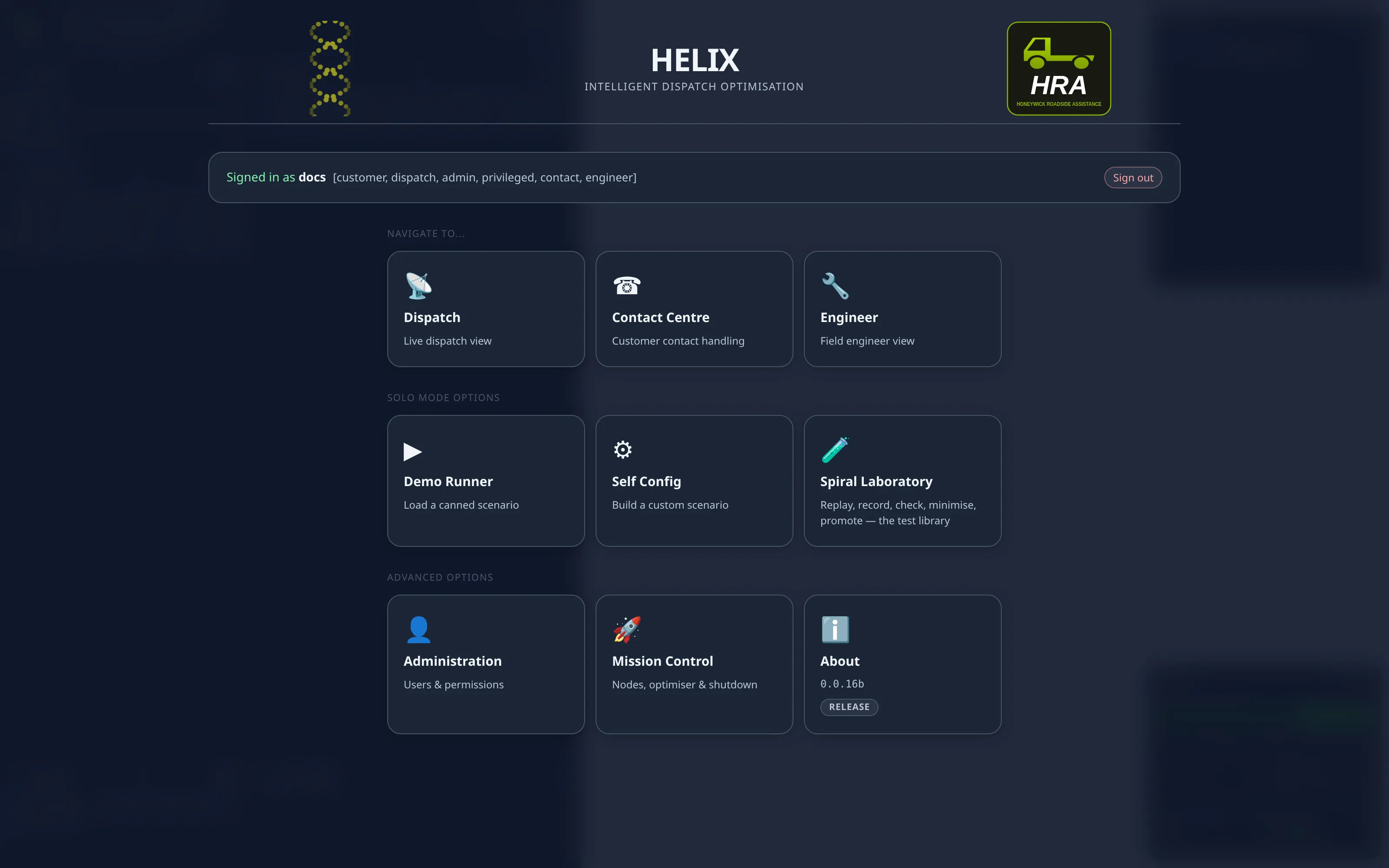
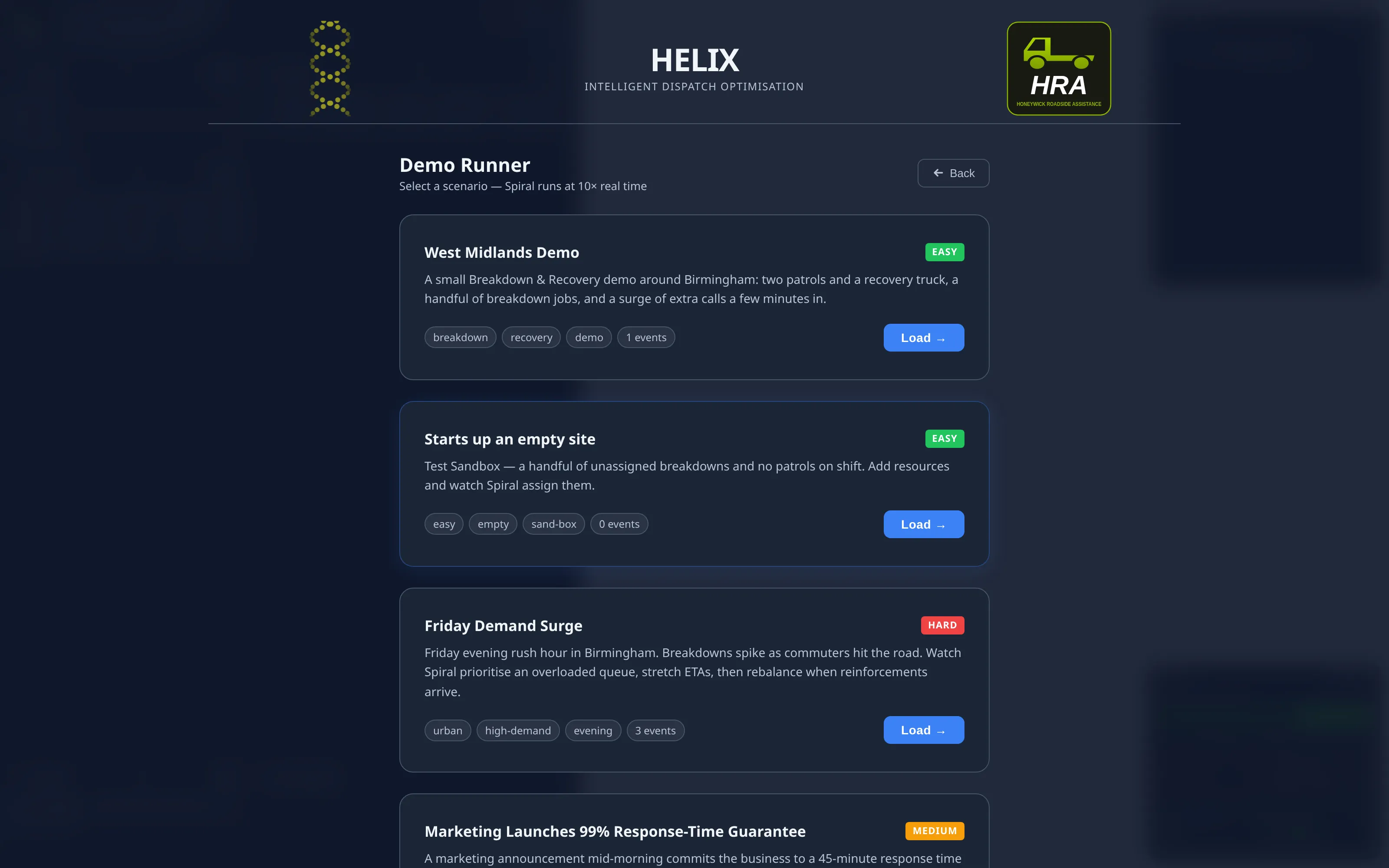
From the landing screen, choose the scenarios option and pick a card from the list — each shows its name and a short description of the story it plays out. Loading a scenario resets the current data, builds the scenario’s world, and starts the clock (see Simulated time below). Desks and surge zones stream to the screen as the world builds — you can watch or own them straight away — while the rest of the world appears when the load completes.
While a scenario is running, the scenario HUD shows the simulated clock, the current speed, and a countdown to the next event; the speed can be changed mid-run, and a scenario can be cancelled at any time without reloading the application.
Simulated time
Section titled “Simulated time”Time acceleration is a scenario-only capability: it is the one place Helix runs the world faster than the clock, and it exists so a day of operation can be watched in minutes. Outside a scenario the clock is always real time.
Waiting for gear 10
Section titled “Waiting for gear 10”A scenario always starts at 1×, whatever speed it asks for, and moves to that speed only once
Spiral has climbed to gear 10. Until then the HUD shows 1× with a note that it is waiting.
The reason is that a cold optimiser is still building the plan for the first time. Accelerating over that period means the simulated world races ahead of a schedule that has not been made yet — which bites hardest on exactly the large scenarios where the climb takes longest, and shows up as arrivals that look late when it is the clock, not the plan, that is at fault. Once gear 10 is reached the requested speed applies and the run proceeds as before.
Two consequences worth knowing:
- Changing the speed by hand cancels the wait. An explicit speed change from the HUD is an instruction, and is applied at once rather than being overridden a moment later.
- A failed Spiral never releases the wait. If the optimiser crashes the scenario stays at 1×, because a dead optimiser is the last thing worth racing.
A scenario declares its own speed as timex in its meta.json:
{ "id": "national_stress", "name": "National stress test", "timex": 1}timex is the multiplier the scenario is promoted to after gear 10. Omit it and the default (10×)
applies. A speed_factor passed on the load request still wins over it, so an operator who asks for a
particular speed gets it.
Large scenarios should declare timex: 1. As a rule of thumb, past about 1000 resources +
projects the world is big enough that real time is already a full-rate test — accelerating it only
measures how fast events can be queued. This is enforced rather than advised: a scenario declaring a
timex above 1 with more than 1000 entities fails to load, naming both counts, so the mistake
surfaces when the scenario is authored instead of as a demo that quietly slews.
Custom scenarios — the self-config wizard
Section titled “Custom scenarios — the self-config wizard”Alongside the pre-built cards, the custom scenario wizard builds a scenario to order. You choose:
- the area the scenario plays out in, and the start time of the simulated day,
- how many resources of each type are on shift, and which desks dispatch the work,
- the project mix — how many of each kind of work are waiting,
- optional archetypes — pre-configured situation templates layered on top,
- the metric thresholds the Metrics panel should judge the run against (SLA and backlog RAG cut-offs).
Everything the wizard offers comes from the client’s own scenario catalogs, so it works on any client without change:
- Resource and project types are the entries of
resource_classes.jsonandproject_classes.json. An entry may carry a"label"(the name the wizard shows) and a"default_count"(the count it opens with); absent, the key is title-cased and the count is 0. Neither field is read by generation. - Desks are the entries of
capability_profiles.json— one desk per profile, each dispatching its profile’sstop_typewith itsdesk_skills, all at the area’s primary depot. Starting from a canned scenario pre-selects that scenario’s desks; starting blank selects every profile. A profile may also carry a"label".
The wizard generates locations that respect each stop type’s
helix.locationType rules, so the built
world matches how the domain authors real work.
Injections and the event log
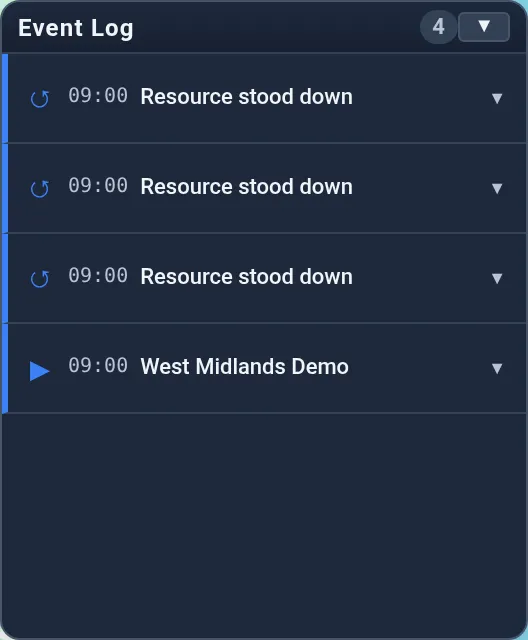
Section titled “Injections and the event log”Scenario scripts inject events at set simulated times — a new breakdown, a resource going unavailable, a surge of demand. Each injection is announced in the Event Log panel (top-right of the map; drag its header to reposition it), newest first, together with detected reactions — the optimiser’s visible responses, such as a re-allocation or an outsource decision. Expanding an entry shows its full description and commentary. Injections also appear as dashed markers on the Metrics time-series charts, so cause and effect line up.
Run files
Section titled “Run files”A run file is a recorded input stream (.run.json) rather than a scripted scenario: loading one
replays it through the optimiser exactly as it originally arrived, with the application read-only
while it loads. Run files are the tool for reproducing a recorded situation — a support case, a
regression, a demonstration of a specific day — and are listed from the landing screen’s run-file
picker, organised by folder.
Ticking Single step in the picker instead advances the file one tagged command at a time — the next command shows as a release button in the dispatch top bar, and the application stays fully editable throughout. This is the analysis mode: see Tune Spiral with Helix for the workflow built on it.
A run file starts with all desks hidden — nothing streams until you watch the desks you care about, which keeps large replays light and focused. Tick Watch desks in the picker to reverse that: desks are set to Watch as the file streams them in, so the whole operation appears as it loads (a desk you Hide mid-run stays hidden).
Shift rules — breaks and maintenance
Section titled “Shift rules — breaks and maintenance”A scenario’s meta.json can add realistic non-productive time to every generated shift through an
optional start_context.shift_rules block. It is opt-in — omit it and the generated world is
unchanged:
"start_context": { "time": "17:30", "area": "greater_manchester", "shift_rules": { // A rest break is added to every shift longer than `afterHours` (default 6) as a BRK unprod // stop carrying its TYPE and nothing else: Spiral never invents a break, but it places the // one it is given from the contract's `break` rules — its length and the window of worked // time it must start in — and keeps adjusting it as the shift runs; it carries no // option either, the duration being the contract's `std`. Add `maxWorkHours` (a window) // or `length` only when the scenario means to override the contract: an authored window // takes preference over the contract's. "break": { "type": "BRK", "afterHours": 6 }, // Each resource independently has a `probability` chance of an off-map maintenance // slot at its base, sized `length`. Seeded, so a reload reproduces the same draw. "maintenance": { "type": "Maintenance", "probability": 0.10, "length": "02:30:00", "at": "base" } }}The break and maintenance stops are generated as the resource’s unprod activity (a break nests as a
concurrent and under maintenance when both apply, so neither is forced before the other). Scenario
desks may also carry a "domain" (one of the client’s helix.domains) —
a Helix-only hint that sets the default group when editing that desk’s skills.
Scenario data — client extension pools
Section titled “Scenario data — client extension pools”Generated projects and resources can carry realistic client extension data (e.g. HRA’s demo
projects each open with a distinct, pre-populated vehicle). Client teams declare named pools of ext
payloads in an optional ext_pools.json beside the scenario catalogs:
{ "vehicles": { "unique": true, "items": [ { "reg": "BD63 SMR", "vehicle": { /* … */ } }, … ] } }and bind them from project_classes.json / resource_classes.json entries with "ext" (a static
template merged into every generated entity) and/or "ext_pool": "<name>" (one item drawn per entity,
merged over the template). unique: true pools draw without replacement across the whole run —
initial entities and mid-scenario injections share the pool — and assignment is seeded, so reloading
the same scenario reproduces it. No API calls are made at demo time; the pool data ships with the
client’s scenarios.
Related
Section titled “Related”- Introduction — the dispatch screen the scenario plays out on
- Metrics — live measurement of the running scenario
- Helix technical overview